Stream Mode
This guide explains how to use Stream Mode to hide PS visuals from your stream or recordings while keeping them visible on your screen.
Overview
By default, PS renders its visuals (circles, lines, ESP, etc.) directly in the game. This means streaming software like OBS will capture these drawings and show them to your viewers.
Stream Mode solves this by moving all PS rendering to a special overlay layer that renders after OBS captures the frame. The result:
- ✅ You see all PS visuals on your screen
- ✅ Your stream/recording shows a clean game without any PS drawings
Demo
This is stream PoV, you can stil see drawings while playing
Always inject PS and wait for it to fully load BEFORE starting your stream.
During PS initialization, visuals may briefly be visible to capture software. We are not responsible for any drawings that appear on stream during the injection/loading process.
Safe order:
- Inject PS
- Wait for PS to fully load
- Enable Stream Mode
- Verify status shows "ACTIVE"
- THEN start your stream
Supported Software
Stream Mode only officially supports OBS (Open Broadcaster Software).
We intercept the OBS capture hook specifically. For maintainability reasons, we cannot support every capture software out there - there are simply too many, and each works differently depending on your hardware and settings.
| Software | Supported | Notes |
|---|---|---|
| OBS Studio | ✅ Yes | Officially supported |
| Discord | ❌ No | Use OBS Virtual Camera workaround (see below) |
| Medal | ❌ No | May work if it uses OBS-style capture |
| WoW Recorder | ❌ No | May work if it uses OBS-style capture |
| Other apps | ❌ No | May work - test on your PC |
Why other apps aren't supported: Different software captures frames in different ways. Some capture internally (inside the game), others capture externally (from your desktop/GPU output). PS draws inside the game and can only bypass captures that happen inside the game - we render after the internal capture is done. External captures (like Discord's DX12 desktop capture) happen outside the game where we have no control.
Streaming with OBS
OBS is the officially supported streaming/recording software.
Setup:
- Enable Stream Mode in PS menu
- Open OBS
- Add a Game Capture source:
- Click + in Sources
- Select Game Capture
- Choose Wow.exe or WowClassic.exe
- Start streaming or recording
Your stream will show a clean game without PS visuals.
Streaming with Discord
Discord screen share will NOT hide PS visuals, even with Stream Mode enabled.
Discord captures frames externally (especially on DX12), which we cannot intercept. You must use the OBS Virtual Camera workaround below.
The OBS Virtual Camera Workaround
To stream on Discord with hidden PS visuals, you need to use OBS as a middleman.
Step-by-Step:
- Set up OBS first (see OBS section above)
- Add Game Capture for WoW
- Make sure your OBS preview shows the game
Not WINDOW CAPTURE
-
Start OBS Virtual Camera:
- In OBS, click Start Virtual Camera (bottom right corner)
- This creates a fake webcam that outputs whatever OBS sees
-
Share on Discord:
- Join a Discord voice channel
- Click Share Your Screen
- Select the 3rd tab: "Devices" (not Window or Screen)
- Choose OBS Virtual Camera
- Click Go Live
-
Done! Your Discord stream now shows OBS output with hidden PS visuals.
Discord Streaming Tips:
- Keep OBS running in the background the entire time
- You don't need to actually stream to Twitch/YouTube - just use Virtual Camera
- If OBS Virtual Camera doesn't appear in Discord, restart OBS
- Make sure Stream Mode is enabled in PS before starting
Why Other Software Doesn't Work
PS is an internal tool - we draw inside the game process. This means:
- ✅ We can intercept captures that happen inside the game (like OBS Game/Window Capture)
- ❌ We cannot intercept captures that happen outside the game (external/desktop capture)
Discord on DX12 captures externally from your GPU output, not from inside the game. To bypass this, we would need to draw externally too - but we're an internal tool, not external.
Other software (Medal, WoW Recorder, etc.) each uses different capture methods depending on your hardware, drivers, and settings. Some might use OBS-style internal capture and work fine. Others might capture externally and not work. You can test if they work on your PC - if PS visuals are hidden, great! If not, use the OBS workaround.
Installing Stream Mode Plugin
The Stream Mode plugin is available for free in the PS Marketplace.
- Open the PS menu in-game
- Go to Marketplace
- Search for "Stream Mode"
- Click Install (it's free!)
- The plugin loads automatically
Using Stream Mode
- Open the PS menu
- Find Stream Mode in the plugin list
- Check Enable Stream Mode
- Status will show "ACTIVE - Visuals hidden from stream"
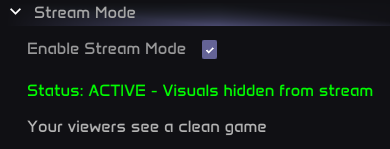
Quick Checklist
For OBS Streaming:
- ☐ Inject PS and wait for full load
- ☐ Enable Stream Mode
- ☐ Verify status shows "ACTIVE"
- ☐ Open OBS with Window Capture on WoW
- ☐ Start streaming
For Discord Streaming:
- ☐ Inject PS and wait for full load
- ☐ Enable Stream Mode
- ☐ Verify status shows "ACTIVE"
- ☐ Open OBS with Window Capture on WoW
- ☐ Click "Start Virtual Camera" in OBS
- ☐ In Discord, share screen → Devices → OBS Virtual Camera
- ☐ Go Live
FAQ
Q: Will my viewers see any PS drawings? A: Not if you're using OBS correctly with Stream Mode enabled.
Q: Why doesn't Discord work directly? A: Discord captures externally, especially on DX12. We can only intercept internal captures. Use the OBS Virtual Camera workaround.
Q: Can I use Medal/WoW Recorder/other software? A: They're not officially supported, but might work if they use OBS-style capture. Test it yourself - if visuals are hidden, it works on your system.
Q: What about sharing my whole desktop? A: Desktop/screen capture is external - Stream Mode cannot hide visuals. Always use Window Capture on the WoW window specifically.
Q: Does Stream Mode affect performance? A: The performance impact is minimal.
Troubleshooting
| Problem | Solution |
|---|---|
| Visuals showing on OBS | Make sure Stream Mode is enabled and shows "ACTIVE" |
| Visuals showing on Discord | Discord doesn't work directly - use OBS Virtual Camera |
| OBS Virtual Camera not in Discord | Restart OBS, make sure Virtual Camera is started |
| Other software shows visuals | That software uses external capture - use OBS instead |
Need Help?
If you're having issues with Stream Mode, ask in our Discord community for assistance.