Map Click to Nav Advanced
Overview
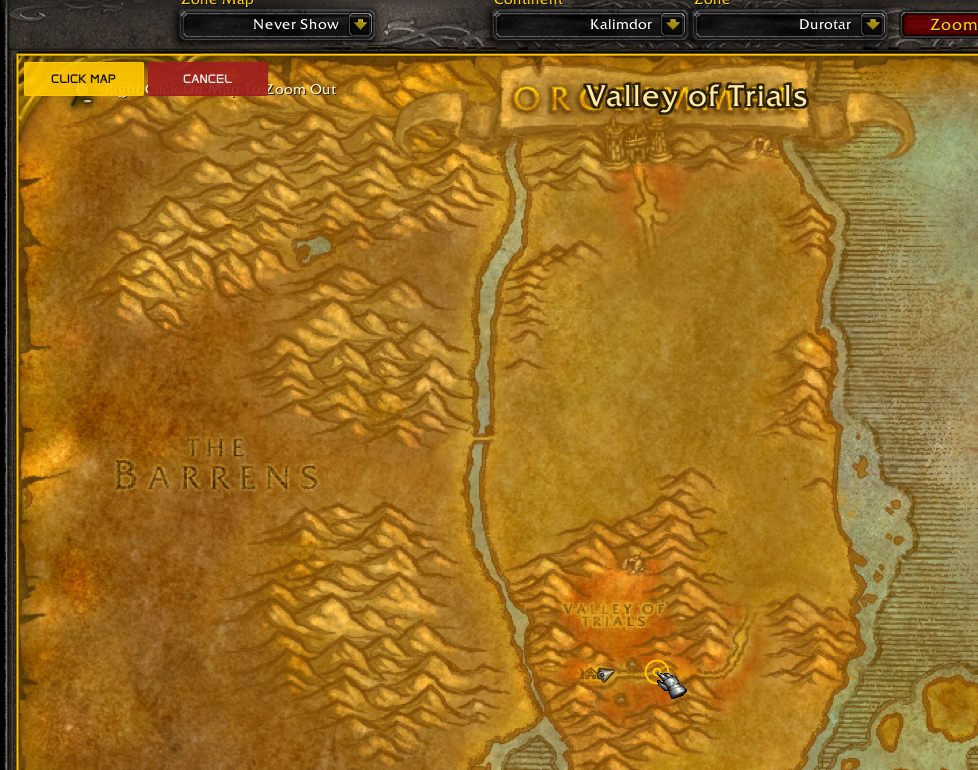
Map Click to Nav Advanced is an upgraded version of the Nav Playground that replaces the notification-based confirmation flow with a native-looking map button — a UI element rendered directly on the in-game map that feels like part of the game itself. Click the button, the map enters targeting mode with a crosshair cursor and yellow overlay, click your destination, and your character starts walking.
The result is a much smoother UX: fewer clicks, no waiting for notification popups, and a visual targeting mode that makes it obvious when the plugin is listening for input.
What's different from the basic version:
- Map Button UI — a styled button rendered directly on the map, with hover effects and DPI scaling
- Targeting Overlay — the map gets a yellow tint and border while in targeting mode, with a crosshair cursor
- No Confirmation Step — click the button → click the map → walking starts immediately
- Window-Based Rendering — demonstrates
register_on_render_window_callbackand custom window drawing - DPI-Aware Layout — button sizes and fonts scale automatically based on screen resolution
- Configurable Position — slider controls to reposition the button anywhere on the map
If you've already read the basic Nav Playground, this page focuses on what's new — the custom UI patterns. NavLib setup, path rendering, and input handling work the same way.
How It Works
┌──────┐   click button  ┌───────────┐   click map   ┌────────────┐
│ IDLE │ ─────────────▶ │ TARGETING  │ ───────────▶ │  WALKING   │
└──────┘                 └───────────┘               └────────────┘
   ▲                          │                            │
   │   button toggle / MMB    │      MMB or arrival        │
   │◀─────────────────────────┘◀──────────────────────────┘
- Idle — a dark "CLICK TO MOVE" button sits in the corner of the map.
- Targeting — button turns yellow and reads "CLICK MAP". The map gets a yellow tint overlay with a crosshair cursor. A CANCEL button appears alongside. Click anywhere on the map to set your destination.
- Walking — button turns green and reads "WALKING...". Your character follows the navmesh path. A CANCEL button remains visible. When the map is closed, a HUD banner shows on-screen.
Cancel at any time with Middle Mouse Button, the CANCEL button, or clicking the main button while walking.
Full Source Code
-- Nav Playground: map button → targeting overlay → click to walk, MMB cancel

local vec2  = require("common/geometry/vector_2")
local color = require("common/color")
local izi   = require("common/izi_sdk")
local plugin_helper = require("common/utility/plugin_helper")

---@type enums
local enums = require("common/enums")

local nav
local function get_nav()
    if nav then return nav end

    ---@diagnostic disable-next-line: undefined-field
    if not _G.NavLib then return nil end
    nav = _G.NavLib.create({
        movement = {
            waypoint_tolerance = 3.0,
            smoothing          = "chaikin",
            optimize           = true,
            allow_partial      = true,
            use_corridor_indoor = false,
        },
    })
    nav:on("arrived", function() core.log("[Nav] Arrived") end)
    nav:on("stuck",   function() core.log_warning("[Nav] Stuck") end)
    nav:on("failed",  function() core.log_warning("[Nav] Failed") end)
    return nav
end

local STATE_IDLE      = 1
local STATE_TARGETING = 2
local STATE_WALKING   = 3

local state            = STATE_IDLE
local destination      = nil
local click_screen_pos = nil
local btn_click_t      = 0

local menu = {
    tree     = core.menu.tree_node(),
    stop     = core.menu.button("nav_pg_stop"),
    offset_x = core.menu.slider_int(0, 100, 0, "nav_pg_btn_offset_x"),
    offset_y = core.menu.slider_int(0, 100, 0, "nav_pg_btn_offset_y"),
}

local c_target    = color.new(255, 200, 0, 255)
local c_target_bg = color.new(255, 200, 0, 40)
local c_path      = color.cyan(150)
local c_dest      = color.green()
local c_active    = color.new(0, 255, 100, 255)
local c_fail      = color.red()
local c_idle      = color.new(150, 150, 150, 255)

local function me()     return core.object_manager.get_local_player() end
local function my_pos() local p = me(); return p and p:get_position() end

local function start_walk(pos)
    local n = get_nav()
    if not n then return end

    destination = pos
    state = STATE_WALKING

    n:move_to(destination, function(ok, reason)
        if ok then
            core.graphics.add_notification(
                "nav_pg_ok", "[Nav]", "Arrived!", 3.0, c_dest
            )
        else
            core.graphics.add_notification(
                "nav_pg_err", "[Nav]",
                "Failed:\n" .. tostring(reason), 4.0, c_fail
            )
        end
        state = STATE_IDLE
        destination = nil
        click_screen_pos = nil
    end)
end

local function cancel()
    local n = get_nav()
    if n then n:stop() end
    state = STATE_IDLE
    destination = nil
    click_screen_pos = nil
end

-- Screen bounds checks
local function cursor_in_menu()
    if not core.graphics.is_menu_open() then return false end
    local c = core.get_cursor_position()
    local p = core.graphics.get_main_menu_screen_pos()
    local s = core.graphics.get_main_menu_screen_size()
    if not c or not p or not s then return false end
    return c.x >= p.x and c.x <= p.x + s.x
       and c.y >= p.y and c.y <= p.y + s.y
end

-- Map helpers
local function get_map_bounds_screen()
    local tl = core.game_ui.get_map_top_left()
    local br = core.game_ui.get_map_bottom_right()
    if not tl or not br then return nil end

    local tl_scr = core.game_ui.ui_pos_to_screen_pos(tl)
    local br_scr = core.game_ui.ui_pos_to_screen_pos(br)
    if not tl_scr or not br_scr then return nil end

    return {
        x1 = math.min(tl_scr.x, br_scr.x),
        y1 = math.min(tl_scr.y, br_scr.y),
        x2 = math.max(tl_scr.x, br_scr.x),
        y2 = math.max(tl_scr.y, br_scr.y),
    }
end

local function get_btn_layout()
    local screen_size = core.graphics.get_screen_size()
    local btn_size = vec2.new(120, 34)
    local font_id = enums.window_enums.font_id.FONT_SMALL
    local gap = 4

    if screen_size.y >= 2000 then
        btn_size = vec2.new(180, 51)
        font_id = enums.window_enums.font_id.FONT_SEMI_BIG
        gap = 6
    elseif screen_size.y >= 1440 then
        btn_size = vec2.new(148, 42)
        font_id = enums.window_enums.font_id.FONT_NORMAL
        gap = 5
    end

    return btn_size, font_id, gap
end

-- Button windows
local walk_btn   = core.menu.window("nav_pg_walk_btn")
local cancel_btn = core.menu.window("nav_pg_cancel_btn")

local function render_map_button(win, pos, size, font_id, label, bg, text_col)
    win:set_initial_size(size)
    win:set_next_window_min_size(size)
    win:force_window_size(size)
    win:force_next_begin_window_pos(pos)

    local clicked = false
    win:set_render_layer(1)
    win:begin(
        enums.window_enums.window_resizing_flags.NO_RESIZE,
        false, bg, bg,
        enums.window_enums.window_cross_visuals.NO_CROSS,
        function()
            win:push_font(font_id)

            local is_hovering = win:is_mouse_hovering_rect(
                vec2.new(0, 0), win:get_size()
            )

            if is_hovering then
                win:render_rect_filled(
                    vec2.new(0, 0), win:get_size(),
                    color.new(255, 255, 255, 35), 0
                )
            end

            win:render_text(
                font_id,
                vec2.new(
                    win:get_text_centered_x_pos(label),
                    win:get_size().y * 0.5
                        - win:get_text_size(label).y * 0.5
                ),
                text_col,
                label
            )

            win:set_next_window_min_size(size)
            win:force_next_begin_window_pos(pos)

            if win:is_rect_clicked(
                vec2.new(0, 0), vec2.new(0, 0) + win:get_size()
            ) then
                clicked = true
            end
        end
    )
    return clicked
end

-- on_render_window: buttons, map overlay, 2D markers, banners
core.register_on_render_window_callback(function()
    local p = me()
    if not p or p:is_dead() or p:is_ghost() then return end

    local map_open = core.game_ui.is_map_open()

    if map_open then
        local bounds = get_map_bounds_screen()
        if bounds then
            local btn_size, font_id, gap = get_btn_layout()

            -- Proportional offset: slider 0-100 mapped to map width/height
            local map_w = bounds.x2 - bounds.x1
            local map_h = bounds.y2 - bounds.y1
            local ox = (menu.offset_x:get() * 0.01) * map_w
            local oy = (menu.offset_y:get() * 0.01) * map_h

            local walk_pos = vec2.new(
                bounds.x1 + 8 + ox,
                bounds.y1 + 8 + oy
            )

            -- Button appearance changes per state
            local walk_bg, walk_text, walk_label
            if state == STATE_TARGETING then
                walk_bg    = color.new(255, 200, 0, 230)
                walk_text  = color.new(0, 0, 0, 255)
                walk_label = "CLICK MAP"
            elseif state == STATE_WALKING then
                walk_bg    = color.new(0, 160, 70, 230)
                walk_text  = color.white()
                walk_label = "WALKING..."
            else
                walk_bg    = color.new(20, 20, 20, 230)
                walk_text  = c_target
                walk_label = "CLICK TO MOVE"
            end

            if render_map_button(
                walk_btn, walk_pos, btn_size,
                font_id, walk_label, walk_bg, walk_text
            ) then
                btn_click_t = core.time()
                if state == STATE_IDLE then
                    state = STATE_TARGETING
                elseif state == STATE_TARGETING then
                    state = STATE_IDLE
                elseif state == STATE_WALKING then
                    cancel()
                end
            end

            -- Cancel button next to walk button
            if state == STATE_TARGETING or state == STATE_WALKING then
                local cancel_pos = vec2.new(
                    walk_pos.x + btn_size.x + gap, walk_pos.y
                )
                if render_map_button(
                    cancel_btn, cancel_pos, btn_size,
                    font_id, "CANCEL",
                    color.new(160, 30, 30, 230), color.white()
                ) then
                    btn_click_t = core.time()
                    cancel()
                end
            end

            -- Targeting overlay: yellow tint + border + cursor crosshair
            if state == STATE_TARGETING then
                local w = bounds.x2 - bounds.x1
                local h = bounds.y2 - bounds.y1
                core.graphics.rect_2d_filled(
                    vec2.new(bounds.x1, bounds.y1), w, h, c_target_bg
                )
                core.graphics.rect_2d(
                    vec2.new(bounds.x1, bounds.y1),
                    w, h, c_target, 2
                )

                local cursor = core.get_cursor_position()
                if cursor then
                    core.graphics.circle_2d(cursor, 12, c_target, 2)
                    core.graphics.circle_2d(cursor, 4, c_target, 2)
                end

                core.graphics.text_2d(
                    "Click anywhere on the map | MMB to cancel",
                    vec2.new(20, 20), 16, c_target, false
                )
            end

            -- Green circle where user clicked on map
            if click_screen_pos and (state == STATE_WALKING) then
                core.graphics.circle_2d(click_screen_pos, 14, c_dest, 3)
                core.graphics.circle_2d(click_screen_pos, 5, c_dest, 2)
            end

            -- Walking HUD on map
            if state == STATE_WALKING then
                local n = get_nav()
                if n then
                    local pr = n:get_progress()
                    core.graphics.text_2d(
                        string.format(
                            "Moving | %s | WP %d/%d | %.0fm | MMB stop",
                            pr.state or "?",
                            pr.path_index or 0,
                            pr.path_count or 0,
                            pr.distance_remaining or 0
                        ),
                        vec2.new(20, 20), 16, color.cyan(), false
                    )
                end
            end
        end
    end

    -- Banner when map is closed and walking
    if not map_open and state == STATE_WALKING then
        local scr = core.graphics.get_screen_size()
        local cx = scr.x * 0.5
        local cy = scr.y * 0.25
        local top_text = "AUTO-WALK: ON \nMMB TO CANCEL"
        local top_tw = core.graphics.get_text_width(top_text, 9, 3)

        plugin_helper:draw_text_message(
            top_text, c_target, color.new(0, 0, 0, 150),
            vec2.new(cx - top_tw, cy), vec2.new(200, 36),
            false, true, "nav_pg_banner_top", nil, true, 3
        )
    end
end)

-- on_render: 3D world only — destination marker and path
core.register_on_render_callback(function()
    local p = me()
    if not p or p:is_dead() or p:is_ghost() then return end
    if not destination then return end

    core.graphics.circle_3d(destination, 1.5, c_dest, 3.0, 2.5)

    local n = get_nav()
    if state == STATE_WALKING and n then
        local path = n:get_current_path()
        if path and #path > 0 then
            for i = 1, #path do
                if i % 12 == 1 or i == #path then
                    core.graphics.circle_3d(path[i], 0.5, c_path, 10, 1.5)
                end
                if i < #path then
                    core.graphics.line_3d(
                        path[i], path[i + 1],
                        color.white(100), 2, 1.5, true
                    )
                end
            end
        end
    end
end)

-- Input
izi.on_key_release(0x01, function()
    if state ~= STATE_TARGETING then return end
    if not core.game_ui.is_map_open() then return end
    if core.time() - btn_click_t < 0.15 then return end
    if cursor_in_menu() then return end

    local pos = izi.get_cursor_world_pos()
    if not pos then return end

    local cursor = core.get_cursor_position()
    if cursor then
        click_screen_pos = vec2.new(cursor.x, cursor.y)
    end

    start_walk(pos)
end)

izi.on_key_release(0x04, function()
    if state == STATE_WALKING or state == STATE_TARGETING then
        cancel()
    end
end)

-- Update
core.register_on_update_callback(function()
    local n = get_nav()
    if n then n:update() end

    if state == STATE_TARGETING and not core.game_ui.is_map_open() then
        state = STATE_IDLE
    end
end)

-- Menu
core.register_on_render_menu_callback(function()
    menu.tree:render("Nav Playground", function()
        if state == STATE_WALKING then
            local pr = get_nav() and get_nav():get_progress()
            if pr then
                core.menu.header():render(
                    string.format("Walking: %s | WP %d/%d",
                        pr.state or "?",
                        pr.path_index or 0,
                        pr.path_count or 0),
                    c_active
                )
            end
        elseif state == STATE_TARGETING then
            core.menu.header():render(
                "Targeting - click map to set destination", c_target
            )
        else
            core.menu.header():render(
                "Idle - open map and click the button", c_idle
            )
        end

        if state ~= STATE_IDLE and menu.stop:render("Cancel") then
            cancel()
        end

        menu.offset_x:render("Button X Offset",
            "Horizontal position on map (0-100%)")
        menu.offset_y:render("Button Y Offset",
            "Vertical position on map (0-100%)")

        local n = get_nav()
        if n then
            local ok = n:is_server_available()
            core.menu.header():render(
                "NavBuddy: " .. (ok and "Connected" or "Disconnected"),
                ok and c_dest or c_fail
            )
        else
            core.menu.header():render("NavLib: not loaded", c_fail)
        end
    end)
end)
What's New: Code Walkthrough
This walkthrough covers only the patterns that are new compared to the basic Nav Playground. For NavLib setup, path rendering, and input handling, see that page.
State Machine
The basic version used three loose variables (pending, destination, traveling). This version uses a clean enum:
local STATE_IDLE      = 1
local STATE_TARGETING = 2
local STATE_WALKING   = 3

local state = STATE_IDLE
| State | Button Label | Button Color | Map Overlay | Behavior |
|---|---|---|---|---|
IDLE | CLICK TO MOVE | Dark | None | Waiting for button click |
TARGETING | CLICK MAP | Yellow | Yellow tint + crosshair | Listening for map click |
WALKING | WALKING... | Green | None (HUD text shown) | Following navmesh path |
The explicit enum makes the code easier to read and extend. Every rendering and input decision branches on state rather than checking multiple booleans.
Map Bounds Detection
To place UI elements on the map, you first need to know where the map is on screen:
local function get_map_bounds_screen()
    local tl = core.game_ui.get_map_top_left()
    local br = core.game_ui.get_map_bottom_right()
    if not tl or not br then return nil end

    local tl_scr = core.game_ui.ui_pos_to_screen_pos(tl)
    local br_scr = core.game_ui.ui_pos_to_screen_pos(br)
    if not tl_scr or not br_scr then return nil end

    return {
        x1 = math.min(tl_scr.x, br_scr.x),
        y1 = math.min(tl_scr.y, br_scr.y),
        x2 = math.max(tl_scr.x, br_scr.x),
        y2 = math.max(tl_scr.y, br_scr.y),
    }
end
This converts the game UI's map corners into screen coordinates. The min/max calls handle cases where the coordinate system might be flipped. Once you have these bounds, you can position anything relative to the map: buttons, overlays, markers, text.
Any time you want to render custom UI on top of the in-game map (waypoint markers, zone labels, ping indicators), start with get_map_bounds_screen() to get the pixel rectangle, then position your elements relative to it.
DPI-Aware Button Sizing
The button layout scales automatically based on screen resolution:
local function get_btn_layout()
    local screen_size = core.graphics.get_screen_size()
    local btn_size = vec2.new(120, 34)
    local font_id = enums.window_enums.font_id.FONT_SMALL
    local gap = 4

    if screen_size.y >= 2000 then
        btn_size = vec2.new(180, 51)
        font_id = enums.window_enums.font_id.FONT_SEMI_BIG
        gap = 6
    elseif screen_size.y >= 1440 then
        btn_size = vec2.new(148, 42)
        font_id = enums.window_enums.font_id.FONT_NORMAL
        gap = 5
    end

    return btn_size, font_id, gap
end
Three tiers based on vertical resolution:
| Resolution | Button Size | Font | Gap |
|---|---|---|---|
| < 1440p | 120×34 | FONT_SMALL | 4px |
| 1440p+ | 148×42 | FONT_NORMAL | 5px |
| 4K (2000p+) | 180×51 | FONT_SEMI_BIG | 6px |
This ensures the button is comfortably clickable and readable at any resolution — critical for UI that sits on the map where the game's own elements are DPI-scaled.
Custom Window Button
The heart of the UI is render_map_button — a reusable function that renders a styled, clickable button using the window system:
local walk_btn   = core.menu.window("nav_pg_walk_btn")
local cancel_btn = core.menu.window("nav_pg_cancel_btn")

local function render_map_button(win, pos, size, font_id, label, bg, text_col)
    win:set_initial_size(size)
    win:set_next_window_min_size(size)
    win:force_window_size(size)
    win:force_next_begin_window_pos(pos)

    local clicked = false
    win:set_render_layer(1)
    win:begin(
        enums.window_enums.window_resizing_flags.NO_RESIZE,
        false, bg, bg,
        enums.window_enums.window_cross_visuals.NO_CROSS,
        function()
            win:push_font(font_id)

            local is_hovering = win:is_mouse_hovering_rect(
                vec2.new(0, 0), win:get_size()
            )

            if is_hovering then
                win:render_rect_filled(
                    vec2.new(0, 0), win:get_size(),
                    color.new(255, 255, 255, 35), 0
                )
            end

            win:render_text(
                font_id,
                vec2.new(
                    win:get_text_centered_x_pos(label),
                    win:get_size().y * 0.5
                        - win:get_text_size(label).y * 0.5
                ),
                text_col,
                label
            )

            if win:is_rect_clicked(
                vec2.new(0, 0), vec2.new(0, 0) + win:get_size()
            ) then
                clicked = true
            end
        end
    )
    return clicked
end
Let's break this down:
Window setup: The window is forced to an exact position and size every frame. NO_RESIZE prevents dragging, and NO_CROSS hides the close button. This makes it feel like a static game UI element rather than a movable window.
Hover effect: is_mouse_hovering_rect checks if the cursor is inside the button, and draws a semi-transparent white overlay for visual feedback — a subtle but important detail that makes it feel interactive.
Centered text: The label is horizontally centered with get_text_centered_x_pos and vertically centered by calculating the offset from the window's midpoint. This works at any button size.
Click detection: is_rect_clicked on the full window area returns true on click. The function returns this as a boolean so the caller can handle state changes.
Render layer: set_render_layer(1) ensures the button renders above the map content but below dialogs.
render_map_button is a generic styled button you can copy directly into your own plugins. Pass different colors and labels per state, and you've got context-aware UI buttons for any overlay.
Targeting Overlay
When the user clicks the button, the map enters targeting mode with a visual overlay:
if state == STATE_TARGETING then
    local w = bounds.x2 - bounds.x1
    local h = bounds.y2 - bounds.y1
    core.graphics.rect_2d_filled(
        vec2.new(bounds.x1, bounds.y1), w, h, c_target_bg
    )
    core.graphics.rect_2d(
        vec2.new(bounds.x1, bounds.y1),
        w, h, c_target, 2
    )

    local cursor = core.get_cursor_position()
    if cursor then
        core.graphics.circle_2d(cursor, 12, c_target, 2)
        core.graphics.circle_2d(cursor, 4, c_target, 2)
    end

    core.graphics.text_2d(
        "Click anywhere on the map | MMB to cancel",
        vec2.new(20, 20), 16, c_target, false
    )
end
Three visual layers work together:
- Yellow tint — a
rect_2d_filledwith low alpha (c_target_bg = color.new(255, 200, 0, 40)) covers the entire map. This is the "you're in targeting mode" cue. - Yellow border — a
rect_2doutline around the map edges reinforces the targeting state. - Crosshair cursor — two concentric circles (12px and 4px radius) follow the cursor, replacing the default pointer with a targeting reticle.
The result is unmistakable: the moment targeting mode activates, the entire map changes appearance. There's no confusion about whether the plugin is listening for input.
Click Position Marker
When the user clicks a destination, the screen position is saved alongside the world position:
izi.on_key_release(0x01, function()
    if state ~= STATE_TARGETING then return end
    -- ...
    local cursor = core.get_cursor_position()
    if cursor then
        click_screen_pos = vec2.new(cursor.x, cursor.y)
    end

    start_walk(pos)
end)
This screen position is then rendered as a green crosshair on the map while walking:
if click_screen_pos and (state == STATE_WALKING) then
    core.graphics.circle_2d(click_screen_pos, 14, c_dest, 3)
    core.graphics.circle_2d(click_screen_pos, 5, c_dest, 2)
end
This gives the user a persistent visual indicator of where they clicked — useful because the 3D destination marker might not be visible on the map.
Render Callback Separation
Unlike the basic version which uses register_on_render_callback for everything, this version separates 2D and 3D rendering:
| Callback | Used For |
|---|---|
register_on_render_window_callback | All 2D UI: buttons, overlays, map markers, HUD banner |
register_on_render_callback | 3D world only: destination circle, path waypoints and lines |
This separation matters because window callbacks have access to the window rendering API (win:render_text, win:render_rect_filled, etc.) and render in screen space, while the standard render callback is for 3D world-space drawing (circle_3d, line_3d).
Button Position Sliders
The menu includes two sliders that let users reposition the button:
menu.offset_x:render("Button X Offset",
    "Horizontal position on map (0-100%)")
menu.offset_y:render("Button Y Offset",
    "Vertical position on map (0-100%)")
These are mapped proportionally to the map size:
local map_w = bounds.x2 - bounds.x1
local map_h = bounds.y2 - bounds.y1
local ox = (menu.offset_x:get() * 0.01) * map_w
local oy = (menu.offset_y:get() * 0.01) * map_h

local walk_pos = vec2.new(bounds.x1 + 8 + ox, bounds.y1 + 8 + oy)
Using percentages instead of pixel values means the button stays in the correct relative position regardless of screen resolution or map size changes.
Auto-Cancel on Map Close
A small but important safety check:
core.register_on_update_callback(function()
    local n = get_nav()
    if n then n:update() end

    if state == STATE_TARGETING and not core.game_ui.is_map_open() then
        state = STATE_IDLE
    end
end)
If the user enters targeting mode and then closes the map (pressing M or Escape), the plugin silently returns to idle. Without this, the plugin would be stuck waiting for a map click that can never come.
Controls
| Input | Context | Action |
|---|---|---|
| Click "CLICK TO MOVE" | Map open, idle | Enter targeting mode |
| Click "CLICK MAP" | Map open, targeting | Toggle back to idle |
| Left Click on Map | Targeting mode | Set destination, start walking |
| Click "WALKING..." | Map open, walking | Cancel movement |
| Click "CANCEL" | Targeting or walking | Cancel current action |
| Middle Mouse Button | Targeting or walking | Cancel current action |
Comparison with Basic Version
| Feature | Basic (Nav Playground) | Advanced |
|---|---|---|
| Confirmation method | Notification popup | Map button + targeting overlay |
| Clicks to start walking | 3 (map click → wait → notif click) | 2 (button → map click) |
| Visual targeting state | None | Yellow overlay + crosshair |
| Button on map | No | Yes, DPI-scaled |
| Render callbacks | on_render only | on_render + on_render_window |
| Button repositioning | N/A | Percentage-based sliders |
| State management | 3 separate variables | Clean state enum |
| Best for learning | Notifications, basic input | Custom UI, window system, DPI scaling |
Key Patterns to Reuse
| Pattern | Where in Code | Reuse For |
|---|---|---|
| Map bounds detection | get_map_bounds_screen() | Any UI overlay on the in-game map |
| DPI-aware sizing | get_btn_layout() resolution tiers | Scaling any custom UI across resolutions |
| Window-based button | render_map_button() | Styled clickable buttons anywhere on screen |
| Targeting overlay | rect_2d_filled + rect_2d + cursor circles | Any "aim mode" or "selection mode" UI |
| Screen-space click marker | click_screen_pos saved on click | Showing where the user clicked on 2D surfaces |
| Render callback separation | on_render_window vs on_render | Keeping 2D UI and 3D world drawing organized |
| Proportional positioning | Slider % × map dimensions | Resolution-independent element placement |
| Auto-cancel on context loss | Check is_map_open() in update | Cleaning up state when UI context disappears |
| State enum | STATE_IDLE / STATE_TARGETING / STATE_WALKING | Any multi-mode plugin with clean transitions |
Requirements
- Nasrine's NavLib — The navmesh pathfinding library must be loaded (
_G.NavLibmust exist)